

By James Sanders
One of the simple joys of in-person teaching was handing out colorful reward stickers to students. Those small tokens of recognition were fun, motivating, and often helped encourage learners who needed a little boost. Even though remote and hybrid classrooms have changed how we interact, virtual reward stickers bring that same encouragement into a digital environment.
You can create attractive, customized virtual stickers quickly and for free using easy design tools like Canva. Below is a practical step-by-step guide to designing, downloading, and adding virtual stickers to student assignments.
How to create virtual reward stickers in Canva
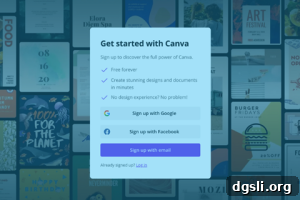
1. Create your Canva account
Canva offers free and paid plans (Pro and Enterprise). For most teachers who want to make a handful of stickers, the free plan provides plenty of templates, design elements, and images. If you need advanced features—like a brand kit, team collaboration, or transparent backgrounds—you can consider upgrading later.
2. Start a sticker design
After logging in, click “Create a design” and choose a size. Canva includes presets for social media and common formats, but it’s useful to create a custom size for stickers. A typical sticker size is 3 x 3 inches; you can set the dimensions in inches, pixels, centimeters, or millimeters depending on how you plan to use the images.
3. Use Canva’s free elements
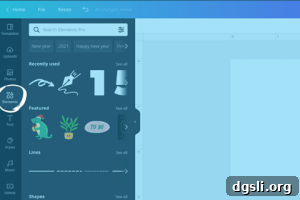
When the design board opens, explore the left-hand menu. If you’re short on time, go straight to the “Elements” tab to find shapes, icons, and premade graphic stickers. Use the “Text” tab to add encouraging phrases like “Great job”, “Well done”, or “Keep it up”. Typing search terms such as “good job”, “star”, or “thumbs up” will surface many sticker-style graphics you can use.
4. Resize and recolor your sticker
Click any element to add it to the board, then drag the corner handles to resize so the design fills the canvas as you prefer. Most Canva elements are editable—select colored areas to open color options and choose a palette that matches your style or classroom theme. Adjust fonts, sizes, and layout until the sticker looks polished.
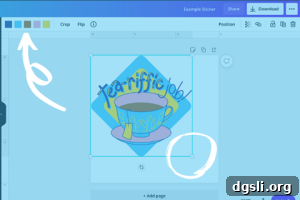
5. Download your reward sticker
When the design is ready, click “Download” and choose PNG for image quality. If you have a paid Canva plan, enable the “Transparent background” option so the sticker appears without a white box behind it. Free accounts can still download PNGs with a background, which work well for most digital uses.
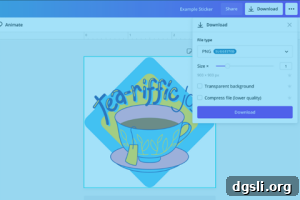
6. Create multiple stickers
To make a set, add a new page to your design board (click the plus icon) and repeat the process using the same canvas size. You can download all pages together as a zipped collection or individual PNG files. If you want a different sticker size, start a new design with new dimensions.
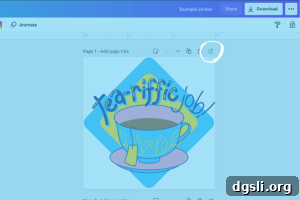
7. Insert stickers into student assignments
Adding stickers to student PDFs or digital assignments is straightforward. Use a PDF editor or your learning management system’s file editor to place images on top of student work. Upload the PNG sticker, then drag and resize it into position. Save or export the file as a new PDF so the sticker is embedded on the student’s document.
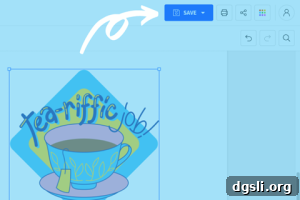
Bonus: ready-made stickers
If you don’t have time to design, you can use pre-made sticker collections. High-quality, transparent sticker packs save time and are easy to drop into assignments. Search for reputable free sticker assets or explore Canva’s library for professionally designed options that match your classroom tone.
Virtual reward stickers are an effective and fun way to celebrate student effort, build motivation, and make feedback feel personal—even when teaching remotely. Whether you design your own or use ready-made packs, these small digital rewards help keep students engaged and encouraged.
About the Author

James Sanders is CEO of Scoot Education. He previously founded Australia’s largest not-for-profit organization for connecting entrepreneurs and spent nine years at Deloitte helping educational startups scale. Today he focuses on helping U.S. schools recruit effective teachers and improve student outcomes. Outside of work, James enjoys soccer, walking his dog Jedi, and supporting the Geelong Cats.
This article was originally published by The Learning Counsel, a research institute and news media hub focused on the shift in education toward digital curriculum.